Tooltips
Due to limitations (or not having found a way just yet), this feature only works in fish, zsh, powershell
(ConstrainedLanguage mode unsupported) and cmd (as of Clink v1.2.46+) for the time being.
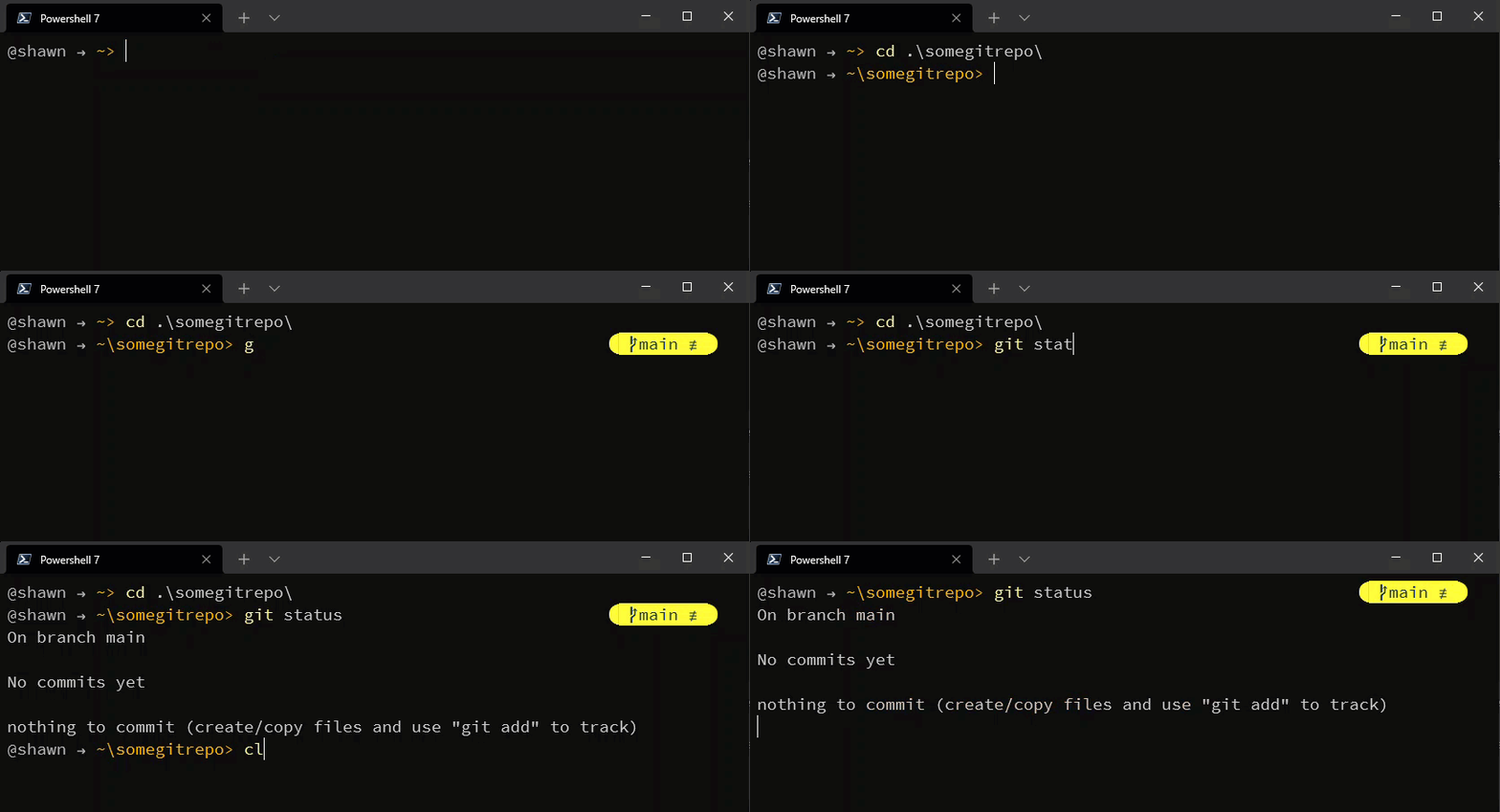
Tooltips are segments that are rendered as a right-aligned prompt while you're typing certain keywords.
They behave similarly to the other segments when it comes to how and when they are shown so you can tweak
them to act and look like you want. The key difference is that they can be invoked using tips which are the
commands you are typing. Due to the possibility of the use of an alias, you can define for which keyword
the segment should be rendered.
Configuration
You need to extend or create a custom theme with your tooltips. For example:
- json
- yaml
- toml
{
"blocks": [],
"tooltips_action": "replace",
"tooltips": [
{
"type": "git",
"tips": [
"git",
"g"
],
"style": "diamond",
"foreground": "#193549",
"background": "#fffb38",
"leading_diamond": "",
"trailing_diamond": "",
"template": "{{ .HEAD }}{{ if .Staging.Changed }} {{ .Staging.String }}{{ end }}{{ if and (.Working.Changed) (.Staging.Changed) }} |{{ end }}{{ if .Working.Changed }} {{ .Working.String }}{{ end }}"
}
]
}
blocks: []
tooltips_action: replace
tooltips:
- type: git
tips:
- git
- g
style: diamond
foreground: "#193549"
background: "#fffb38"
leading_diamond:
trailing_diamond:
template: "{{ .HEAD }}{{ if .Staging.Changed }} {{ .Staging.String }}{{ end
}}{{ if and (.Working.Changed) (.Staging.Changed) }} |{{ end }}{{ if
.Working.Changed }} {{ .Working.String }}{{ end }}"
blocks = []
tooltips_action = "replace"
[[tooltips]]
type = "git"
tips = [ "git", "g" ]
style = "diamond"
foreground = "#193549"
background = "#fffb38"
leading_diamond = ""
trailing_diamond = ""
template = "{{ .HEAD }}{{ if .Staging.Changed }} {{ .Staging.String }}{{ end }}{{ if and (.Working.Changed) (.Staging.Changed) }} |{{ end }}{{ if .Working.Changed }} {{ .Working.String }}{{ end }}"
This configuration will render a right-aligned git segment when you type git or g followed by a space.
A tip should not include any spaces. Keep in mind that this is a blocking call, meaning that if the segment renders slow,
you can't type until it's visible. Optimizations in this space are being explored.
Note that you can also define multiple tooltips for the same tip to compose tooltips for individual commands. For example,
this configuration will render the AWS profile as well as the Azure subscription information when you type terraform
followed by a space.
- json
- yaml
- toml
{
"blocks": [],
"tooltips": [
{
"type": "aws",
"tips": [
"aws",
"terraform"
],
"style": "plain",
"foreground": "#e0af68",
"template": "f {{.Profile}}{{if .Region}}@{{.Region}}{{end}}"
},
{
"type": "az",
"tips": [
"az",
"terraform"
],
"style": "plain",
"foreground": "#b4f9f8",
"template": " {{ .Name }}"
}
]
}
blocks: []
tooltips:
- type: aws
tips:
- aws
- terraform
style: plain
foreground: "#e0af68"
template: f {{.Profile}}{{if .Region}}@{{.Region}}{{end}}
- type: az
tips:
- az
- terraform
style: plain
foreground: "#b4f9f8"
template: {{ .Name }}
blocks = []
[[tooltips]]
type = "aws"
tips = [ "aws", "terraform" ]
style = "plain"
foreground = "#e0af68"
template = "f {{.Profile}}{{if .Region}}@{{.Region}}{{end}}"
[[tooltips]]
type = "az"
tips = [ "az", "terraform" ]
style = "plain"
foreground = "#b4f9f8"
template = " {{ .Name }}"
Hide duplicate information
Set hide_if_segment: true on a tooltip to skip it when the corresponding segment is already present in the cached
primary prompt. The default is false, so tooltips continue to render independently unless you opt in.
Segments match by their alias, or by their type when no alias is set. Use the same alias on the contextual segment
and its tooltip when you have multiple segments of the same type. The check covers the entire primary prompt,
including the right prompt, and uses the last saved render rather than evaluating the contextual segment again.
Segments that were omitted, rendered empty, or hidden by block overflow do not suppress a tooltip.
Tooltips do not suppress one another.
For example, show the Python version in Python projects, and show it on demand elsewhere:
- json
- yaml
- toml
{
  "blocks": [
    {
      "type": "rprompt",
      "segments": [
        {
          "type": "python",
          "style": "plain",
          "options": {
            "display_mode": "context"
          }
        }
      ]
    }
  ],
  "tooltips_action": "prepend",
  "tooltips": [
    {
      "type": "python",
      "style": "plain",
      "tips": [
        "python",
        "pip",
        "pyenv"
      ],
      "hide_if_segment": true,
      "options": {
        "display_mode": "always",
        "home_enabled": true
      }
    }
  ]
}
blocks:
  - type: rprompt
    segments:
      - type: python
        style: plain
        options:
          display_mode: context
tooltips_action: prepend
tooltips:
  - type: python
    style: plain
    tips:
      - python
      - pip
      - pyenv
    hide_if_segment: true
    options:
      display_mode: always
      home_enabled: true
tooltips_action = "prepend"

[[blocks]]
type = "rprompt"

[[blocks.segments]]
type = "python"
style = "plain"

[blocks.segments.options]
display_mode = "context"

[[tooltips]]
type = "python"
style = "plain"
tips = [ "python", "pip", "pyenv" ]
hide_if_segment = true

[tooltips.options]
display_mode = "always"
home_enabled = true
Command matching is unchanged. If every matching tooltip is skipped, the existing right prompt remains visible,
including unrelated segments. Otherwise, tooltips_action controls how the remaining tooltips are displayed.
Tooltips action
You can configure the tooltips to display in extension to the current rprompt (if any) or replace it (default behavior).
You can do this by setting the tooltips_action property in your configuration. The possible values are:
replace: Replaces the current rprompt with the tooltips. This is the default behavior.extend: Appends the tooltips to the current rprompt.prepend: Prepends the tooltips to the current rprompt.
You can set this property in your configuration like so:
- json
- yaml
- toml
{
  "blocks": [],
  "tooltips_action": "extend",
  "tooltips": []
}
blocks: []
tooltips_action: extend
tooltips: []
blocks = []
tooltips_action = "extend"
tooltips = []